
INCREASE YOUR RAM TO 4GB ON ANDROID FOR ROOTED AND NON ROOTED USERS!!
INCREASE YOUR RAM TO 4GB ON
ANDROID FOR ROOTED AND NON
ROOTED USERS!!
A premium Android smartphone is all you need for your daily use and even for playing HD games. The great thing about the OS is that you can find millions of apps and games on the Google Play Store. These apps/games cater to almost all the needs of smartphone users and there isn’t much to complain about. However, in order to run high performance apps or full HD games, your Android device needs to have premium specifications such as a decent processor and enough RAM. That’s why we’re going to show you how to increase RAM in Android phone devices.
Most users look for a better processor in Android devices and they don’t give much attention to RAM. The thing is that RAM is one of the most essential features of a device and even if the processor is top-notch and you don’t have enough RAM, then having that processor is almost useless. RAM is the memory which lets you run apps in your device. The greater the RAM, the more apps you can run simultaneously and the less lag you get while using these apps. Budget Android devices don’t have enough RAM to run high performance apps but you can easily increase RAM in Android phone devices by following one of the methods below.
Method 1: ROEHSOFT RAM Expander $9.51 (Root)
At $9.51, ROEHSOFT RAM Expander is a relatively expensive app to increase RAM for Android phones. However, if your device is compatible, this is one of the most reliable apps for effective RAM management on Android. The app has several features but you need root access in order to use the app.
Step 1
Firstly, you need to check whether ROEHSOFT Ram Manager supports your device as this is a paid app. You need to download and install the Memoryinfo and Swapfile check testing app in order to check whether your phone is compatible. You can download the app using the Google Play button below.

Once you have installed the app, launch it and press the Start RAMEXPANDER Test Here button. After that, use your phone normally for about 5 minutes. After 5 minutes, the app will give you the memory results. If your device ran fine during those 5 minutes and you didn’t get any error, then you’re good to go.

Step 2
Next, download and install the ROEHSOFT Ram Expander app on your Android device. You can get the app using the Google Play button below.
Step 3
Launch the app and select your desired language. A popup will ask you to Grant Root Access. Just click on Ok to grant the app root access. After you are taken to the homescreen, you will see a lot of information about your device including RAM and SD card memory. You can check back with this info and see if the process worked.

Step 4
Now, check on Autorun in order to start the app on boot.

Step 5
Next, you can select the optimal RAM value by clicking on the Optimal Value button. You can also use the swapfile slider manually to increase the SD card storage that you want to use as additional RAM.

Step 6
Now, click on Swap Active. This will start the RAM optimizing process to increase RAM in Android on your phone devices. You might not see an increase in RAM in your phone’s settings menu, but your device should feel faster and smoother. In order to fully check the performance after increasing the RAM, you can play an HD game that you couldn’t before due to poor performance and it should run much better on your device.

Method 2: Smart RAM Booster (No Root)
Smart RAM Booster is a very light third party app which does a good job at increasing the RAM on Android phones. It is very easy to use and you can increase the RAM on your device through the click of a button.
Step 1
Download and install Smart RAM Booster app on your Android device. You can get the app through the Google Play button below.
Step 2
Once installed, open the app and click on settings. Here you can select the boost level and add apps to the whitelist. Selecting a stronger boost level will significantly improve your RAM but a lot of apps might be killed during the process. The whitelist is basically a list where you can add apps that you don’t want to kill when you start the boosting process. For example, if you want to use Whatsapp at all times, you can add it to the list and it won’t get killed when you use the boost option. You can also select the Boost automatically option which automatically boosts the RAM when the phone is running slow or if the RAM is full. This is the perfect option for users who don’t want to manually boost the RAM when the phone is acts slow. Checking the RAM Booster Notification option will let you increase the RAM using your notification bar.


Step 3
If you want to manually increase RAM in Android phone devices, simply click on Boost Now or use the Boost button in your notification bar. This will kill several processes and your device should instantly feel faster.

Method 3: RAM Manager Pro $3.95 (Root)
This is another great app that helps in increasing RAM for any Android devices. The basic version doesn’t have many features and is almost useless so you’ll need the pro version if you want to increase your RAM. The app came into existence from a successful RAM optimizing script at the XDA forums. It gives you various RAM profiles which you can use depending on what you want to do on your phone. You need root access in order to use this app.
Step 1
Download and install RAM Manager Pro on your Android device. There is also a free version available but that is almost useless so you need to get the pro version. You can download it through the Google Play button below.
Step 2
Launch the app and click on VM Heap Size. This is basically the maximum memory that an app can use on the phone. If some of your applications have the tendency to use a lot of RAM, then you can set a limit using this option.

Step 3
You can also enable swap by clicking on Swap file. Using this is not recommended as this can easily damage your SD card.

Step 4
Next, you can select the profile that you want to use to increase RAM in Android phone devices. This is the best thing about the app as you can use various settings depending on what you want to do on your device. For HD gaming, you can select the Hard gaming profile and for using various apps simultaneously, you can use the Hard multitasking option. Advanced users can also use their own preferred settings by clicking on the Custom profile. After you select the profile, you’re done. Your phone should now manage RAM according to the profile you selected and RAM management should be much more efficient now.

Method 4: RAM Control Extreme (No Root)
RAM Control Extreme is another decent app to increase RAM in Android phone devices. The app doesn’t require root access and has several features built-in, including a task killer. The app has received over 100,000 downloads, however, some premium features are only included in the Pro version of the app, which costs about $2.99.
Step 1
Download and install RAM Control Extreme on your Android device. You can get the app by clicking the button below.
Step 2
Open the app, and go to the SETTINGS tab. Here you can select the RAM boosting levels such as normal, strong or extreme. You can also select the auto RAM boosting frequency to automatically increase RAM on your Android devices.

Step 3
Next, go to the RAMBOOSTER tab. Now, click on the Start button. This will start the Auto RAM booster and the app will start to increase RAM on your phone devices automatically at regular intervals so that you always have enough free RAM for multitasking.

Step 4
In order to increase RAM in Android phone devices manually, you can go to the TASK KILLER tab. Here, you can select the apps that you want to kill. After selecting the apps, simply click on the KILL button to kill the apps and increase the RAM.

Method 5: General RAM Increase (No Root/No Apps)
This is a set of tips rather than an actual method to increase RAM in Android phone devices. If you don’t have root access and don’t want to install third party apps, then you can use these tips to increase RAM in Android without root.
Step 1
Do not use any Live wallpaper if you want to increase RAM in Android phone devices. Live wallpapers do look beautiful but they take up a lot of memory. You would be surprised on how much RAM you can free up by switching to a normal wallpaper.
Step 2
Remove any unnecessary apps that you have installed and don’t use at all. A lot of apps run in the background, taking up a lot of RAM. If you don’t want to remove these apps and only want them to run when you actually want to use them, simply force them closed by going to Settings/Apps. This should increase RAM in Android phone devices drastically.
Step 3
If you have a lot of bloatware apps that you cannot uninstall, you can simply disable or force close them by going to Settings/Apps.
Conclusion
Third party apps, if free, usually come with ads and might not work on all Android devices. Method 5 is the perfect way to increase RAM in Android phone devices if you don’t want to install third party apps. However, if you still want to install third party apps, then make sure that you follow the instructions properly. You can switch to another method if a particular method doesn’t work on your device since third party performance enhancing apps tend to work only on some Android devices. Feel free to shoot any questions below!
ADD AIR GESTURES ON ANY SMART PHONES ONLY THROUGH THREE APPS
ADD AIR GESTURES ON ANY SMART PHONES
ONLY THROUGH THREE APPS
DOWNLOAD HOVERING CONTROLLS

Ever wanted to use your smartphone without touching the screen? Now you can!!
With Hovering Controls you can use your phone just like Samsung Galaxy S4 does with Air Gesture and much more!
If you find this app usefull for you, consider buying it for supporting new updates, thank you.
If app does not work for you, email me, no need to vote 1 star and leave a bad comment as for other people it works very well.
Hovering Controls uses the proximity sensor of your device to register simple motions performed in front of your device. Predetermined apps can be launched by either hovering over the sensor, swiping once, or swiping twice. Silencing an alarm or ringtone is as simple as a hand wave. You can also control your media playback this way, allowing you to change to the next or previous song or video without ever turning on the phone screen and physically touching it.
Do you like Quick Glance from Galaxy S4? Now you can have it too!!
And that is not all, you can lock/unlock your phone, answer calls, slide betwen photos in your gallery and scroll up/down in your browser!! (some features need a rooted device)
Two modes are available, both offering a different take on opening apps:
Target mode: open a pre-determined app with a set gesture
Carousel mode: open up apps from a set list of apps
The app uses proximity sensor, use test sensor in menu to test your sensor sensibility and finde how you have to wave for it to detect. If you decide to hide notification icon, the service may stop working if android needs memery resources (it will stop detecting events ) for a while until it is restarted by its own.
Music Controls How to:
- Start Hovering Controls with Music Control Activated in settings.
- Open your music/video player and start playing a song/video
- You can now use other apps while listening music, Hovering Controls will remember wich app was playing your song/video, if you want to change the player, just open it and start playing a song/video! ;-)
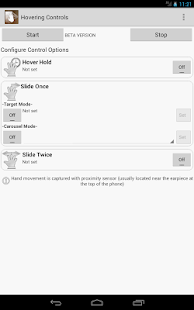
- Set apps to open with all the available gestures.
- Silence alarm.
- Silence incoming call.
- Switch betwen recent apps (like back and forward behaviour)
- Fast go to home screen
- QuickGlance like Galaxy S4 has!!! (or choose to show your lockscreen)
- Control your music player (next/previous/pause/resume) even with screen off!!!
- Shake phone during a call to activate/deactivate speakerphone.
- Answer incoming call, just put your phone near to your ear (it uses Hover Hold motion)
Features for ROOT USERS:
- All previous features.
- AutoShoot pictures/videos, no need to push the button again!(disabled for future update)
- Slide betwen your photos in your image gallery (1 slide->next, 2 slides->previous)
- Scroll up and down in your browser (1 slide->down, 2 slides->up) ;-)
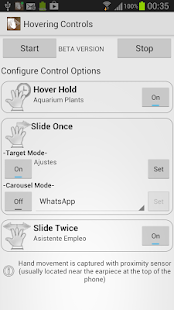
Update:
- Fix bug that answer a call after a few seconds when silencing it.
- Fix some FC when answering calls and other FC.
- Option to choose a video player for the music/video player controls, fixing a bug that music start playing when trying to pause a video.
- Tried to add Spotify support, pleas report if it works, i couldnt really test it.
- Test sensor section changed to Sensor options, You can change alternate sensor delay time and set it to use for real use
DOWNLOAD WAVE COTROLL PRO


Works with your favorite media apps: Spotify, Pandora, Winamp, MX Player, and more. Get air gestures today on the phone you have now.
This Pro version gives all current and future features at no additional cost. Free version has purchasable upgrades to pick and choose features as they become available.
NEW:
Tasker Support! Change profiles from Tasker - Find it in the plugin section in Tasker app.
Control Music playback on your PC with foobar2000 controller Pro - now compatible with Wave Control
Known Issues:
- Galaxy Ace, Y, and Fit: Try a different music app for the list further down.
- If Screen Off not working - Turn on Device Administrator in Settings Tab
- Actions for Pro: Stop, Fast Forward, Rewind, Volume Up/Down, Launch Google Voice Search, Screen Toggle On/Off, Toggle UI, Recent Apps, Cycle Apps, None
Great for:
- At your desk - No need to turn on the screen or unlock to change songs
- Driving - Don't take your eyes off the road to change songs
- Cooking - Control your music with your hands covered in dough
- Cleaning - Don't worry about getting dirt and grime all over your screen
- Eating - Don't worry about smearing all that burger juice on your phone
- Working Out- Don't fall off the treadmill trying to unlock your phone
Player Compatibility List:
- Any Music app that supports "Headset Controls" such as these:
- Spotify
- Rocket Player
- PowerAmp Menu -> More -> Settings -> Headset -> Respond to Headset Buttons
- Pandora
- last.FM
- Slacker Radio
- Uber Music
- Samsung Music Player (Galaxy S2 and Note.. not Galaxy S, Y, Ace)
- Google Music
- MixZing Menu -> Settings -> Headset and Buttons -> Enable Headset Controls
- doubleTwist Settings -> Player Settings -> Use headset controls
- Winamp Menu -> Control Headset
- DoggCatcher
- PodPlayer+
- MX Player
- Samsung FM Radio
- .. and more!


Easy to use, just wave your hand over the sensor (usually located just next to the earpiece on your phone).
- Holding it there (hover) - Pause/Resume
- One wave across - Next Song
- Two waves across - Previous Song
- Three times - Enable/Disable the controls
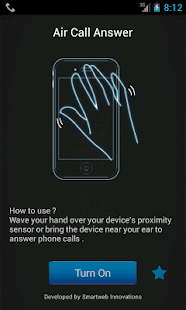
AIR CALL ANSWER

 This app helps you to answer phone calls by just waving your hand over the proximity sensor . It
will also help you to attend the calls automatically when you bring the call near your ear .Can't
bring phone near air ? no worries , just enable the speaker option in preferences ;) the app will
attend the call and enable speakerphone for you .
The app uses your phone's in-built proximity sensor to detect whether you have waved your
hand infront of the phone or whether you have brought the phone near your ears
Description

\
HOWERING APPS+WAVE CALL PRO
AIR CALL ACCEPT
AIR CALL ACCEPT
FOR FREE
http://www.4shared.com/rar/J7Lqa0vh/howering_controllswavecontroll.html
PASSWORD:www.abhinandmanalayam.blogspot.in
please comment
PASSWORD:www.abhinandmanalayam.blogspot.in
please comment


